Reset your password
Request a reset link and set a new password for your Industrix account.
If you forgot your password, request a reset link using the email address associated with your Industrix account.
Request a reset link
-
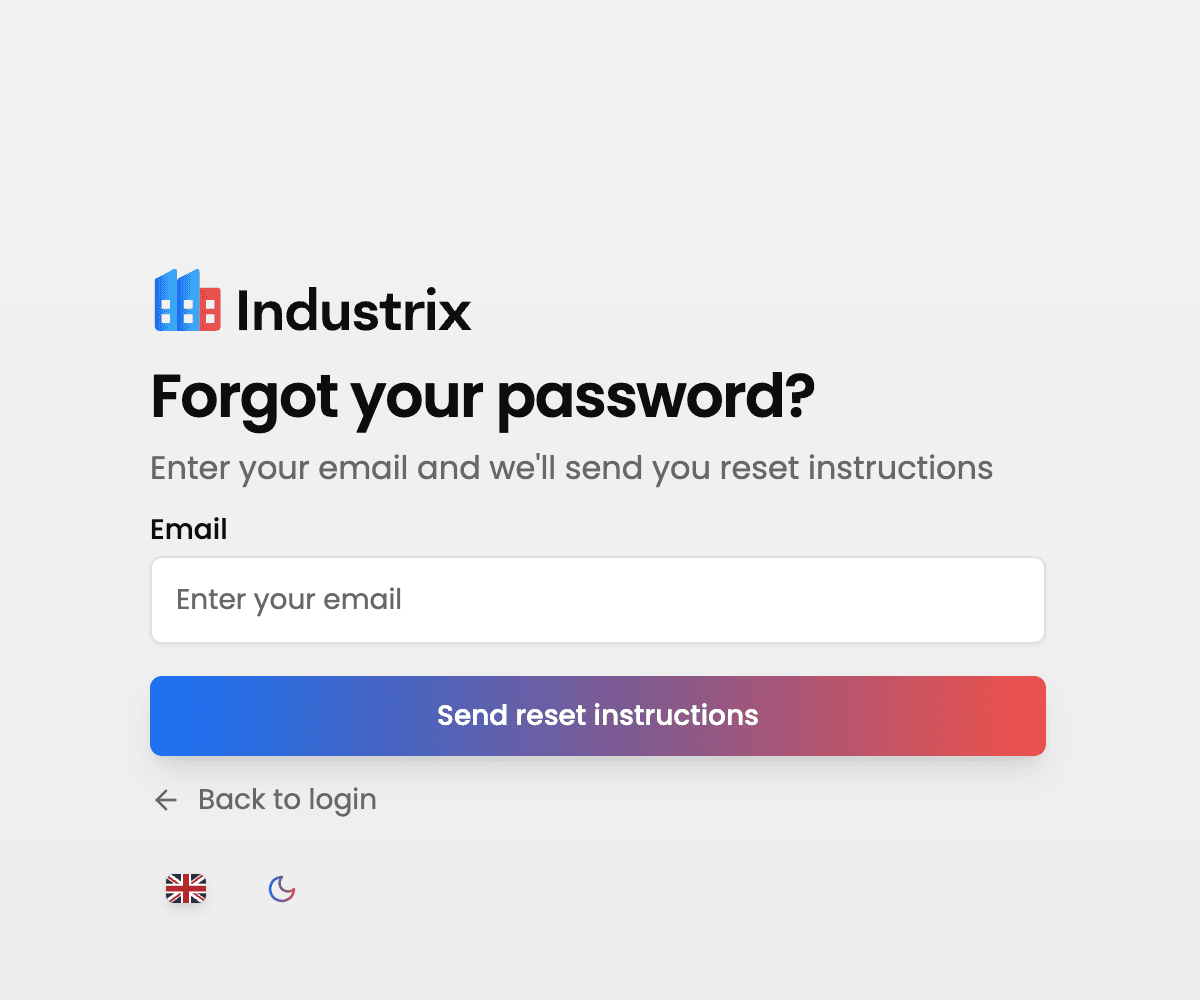
Open the Industrix password reset page. You can also select Forgot password on the sign-in page.
-
Enter your account email address, then select Send reset instructions.
-
Check your inbox for an email with the subject Password Reset Instructions, then select Reset password in that email.
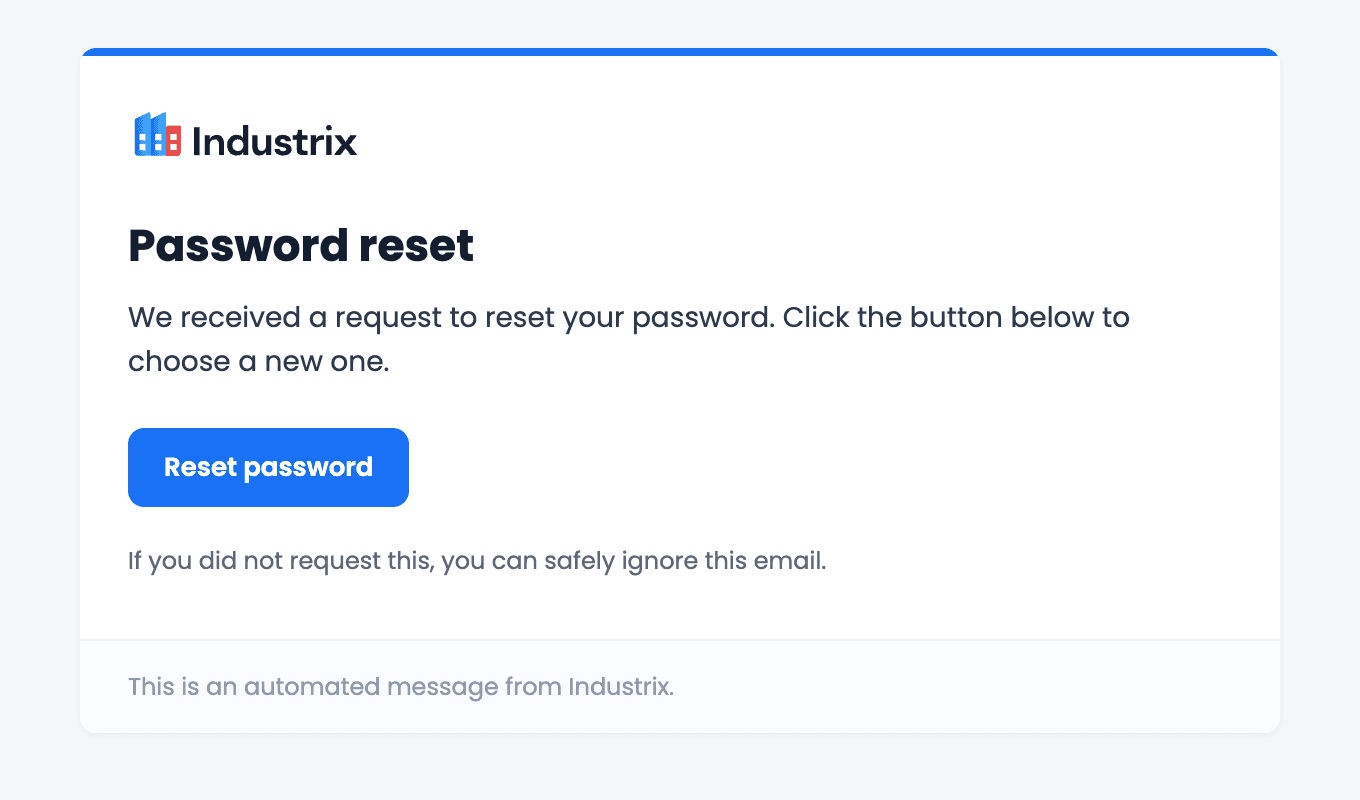
Example email. Your email app may display it differently; use the button in the email you receive.
For privacy, the confirmation does not tell you whether an account exists for the email address you entered. If no email arrives, check your spam or junk folder and make sure you entered the address used for your account. You can request another link if needed.
Set a new password
- The email link opens the Update your password page.
- Enter a new password in New Password, then enter it again in Confirm New Password. Your password must be at least eight characters long.
- Select Update password. Then sign in with your new password.
If the link is invalid or has expired, return to the password reset page and request a new one. If you see Request a new link, you can select it to return there.