Change language and theme
Choose the language and light or dark appearance you prefer in Industrix.
Industrix offers English and Bahasa Indonesia. You can also switch between light and dark appearance.
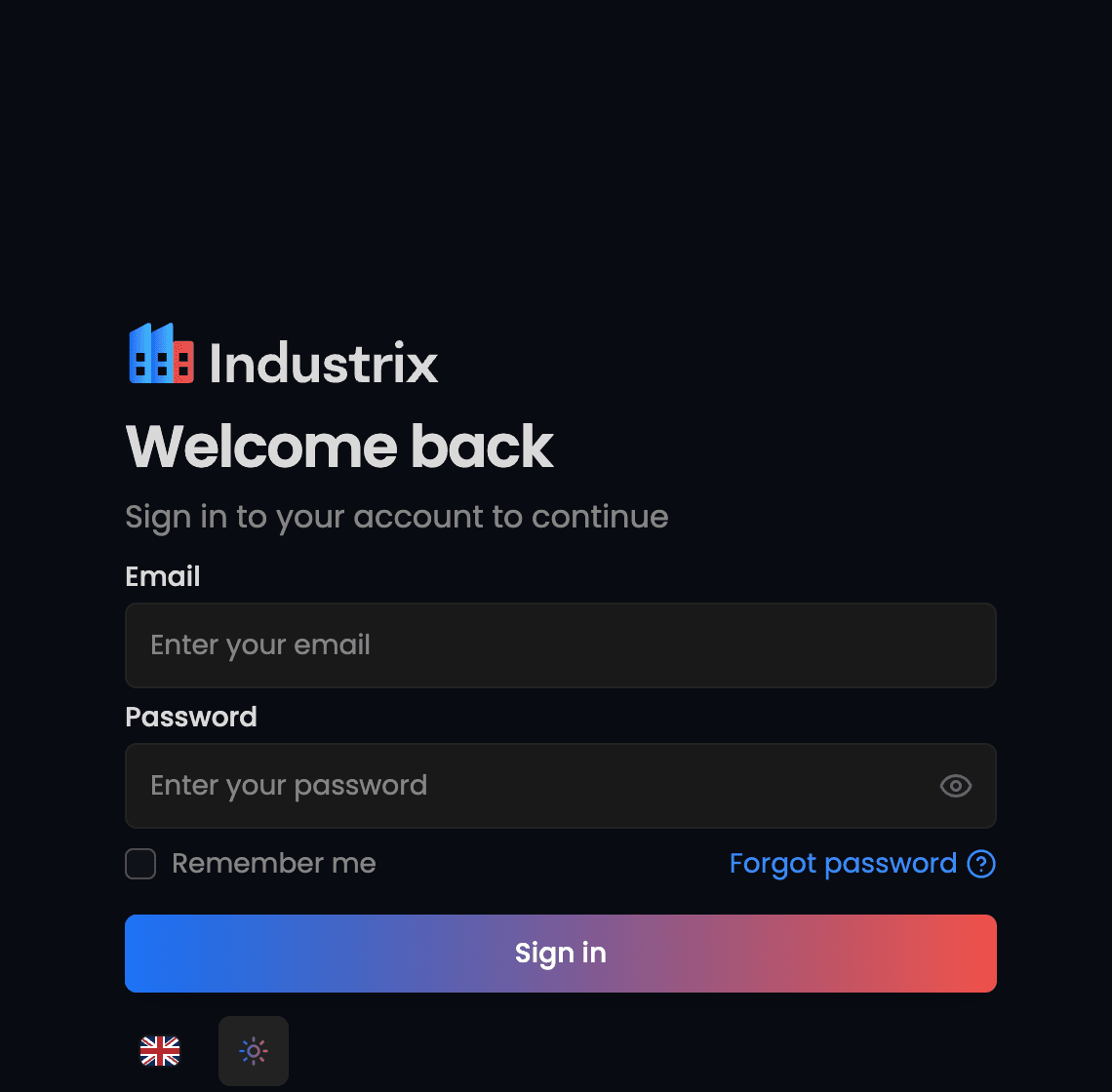
On sign-in and account pages
The controls are below the form on the sign-in, password reset, and organization selection pages.
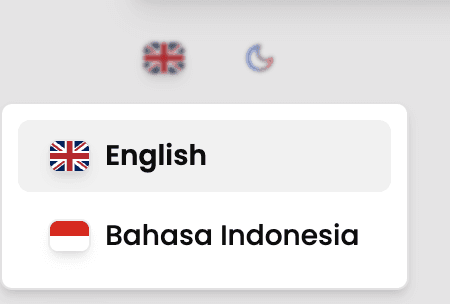
Change language
- Select the flag icon below the form.
- Choose English or Bahasa Indonesia. The page updates immediately.
Change theme
Select the moon or sun icon next to the flag. The page switches between light and dark appearance immediately; select it again to switch back.
In App and My Portal
On a desktop screen, look at the top-right corner of the platform header. Select the flag icon to choose English or Bahasa Indonesia, or select the moon or sun icon beside it to switch between light and dark appearance.
App
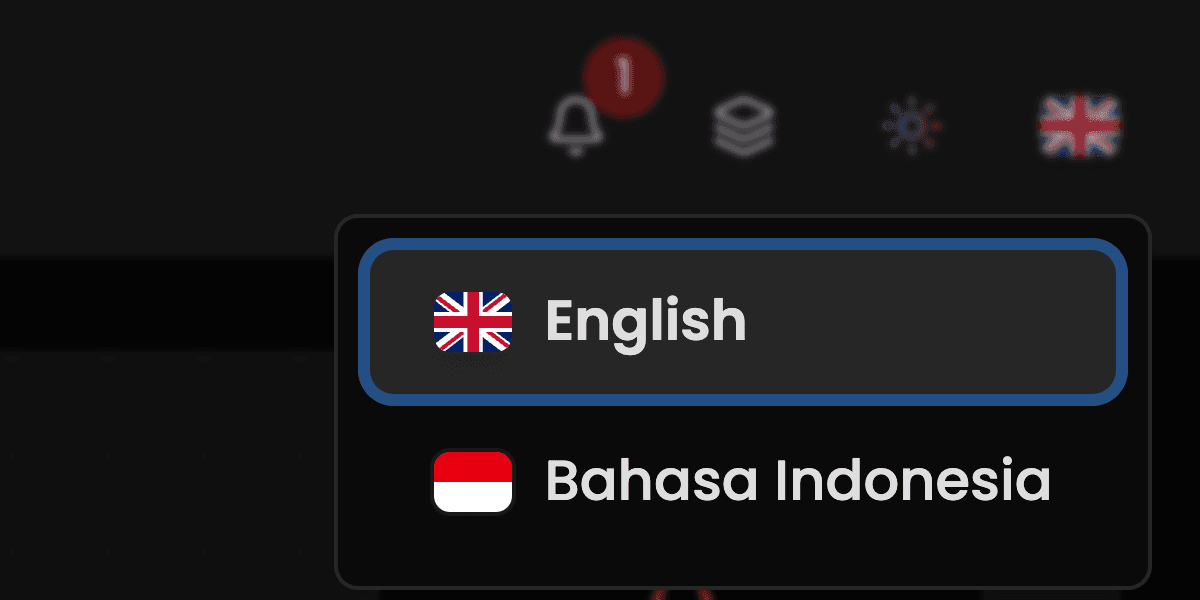
Example App language menu in dark appearance.
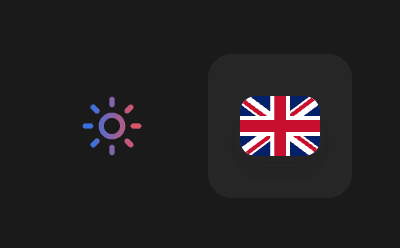
Select the sun icon to switch App to light appearance.
My Portal
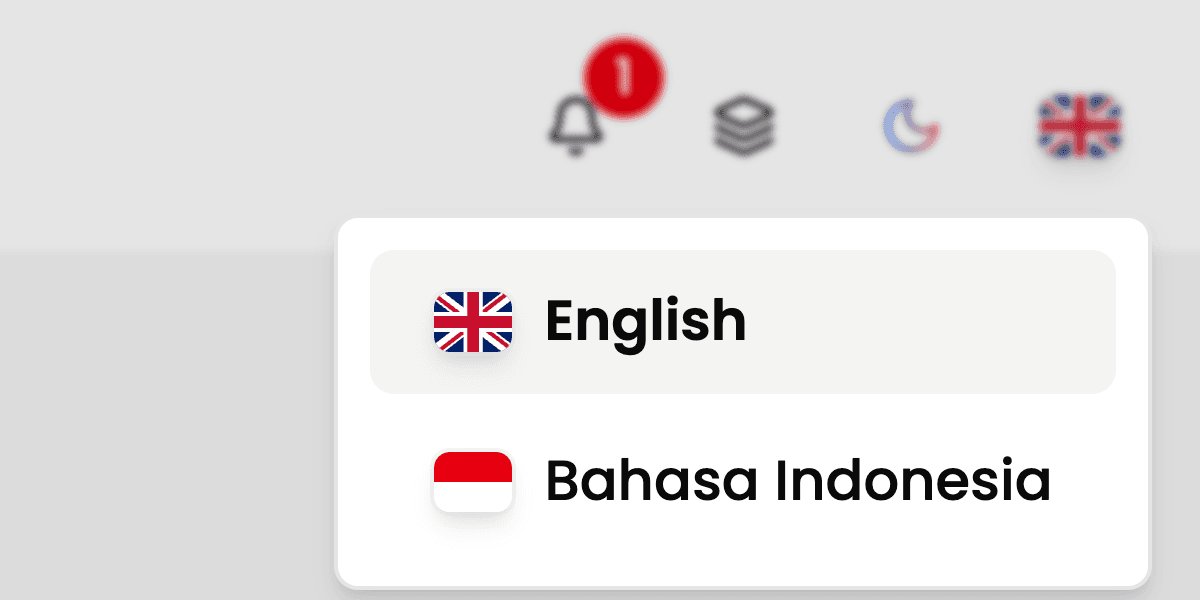
Example My Portal language menu in light appearance.
Select the moon icon to switch My Portal to dark appearance.
On a smaller screen, open the sidebar menu. The language and theme buttons are near the bottom of the sidebar, above your profile menu.
Your language choice is saved in your browser for the platform you are using. If another platform opens in a different language, choose your language there too.
In this documentation
The documentation site has its own language menu and theme button at the bottom of the left sidebar. On a smaller screen, open the sidebar first.