Set up billing
Add billing contacts, pay an outstanding bill, and check its payment status.
Use My Platform for your organization's billing. If you want a colleague to receive billing emails, invite them to the organization first: a billing contact must already be an organization user. You can review and pay a bill before inviting anyone if it is due.
The screenshots below are illustrative examples. Payment options and account details can differ for your bill. Always use the payment details displayed in your own My Platform session, never the example details in a screenshot.
Add billing contacts
- In My Platform, confirm you have selected the intended organization. Open Billing → Billing Contacts.
- Select Create Contact and search for one or more existing organization users by name or email. If someone is missing, invite them first.
- Keep Receive email notifications for billing events selected for anyone who should receive those emails, then select Create Contact.
- Check that each intended contact appears and is Active. You can update their notification setting later.
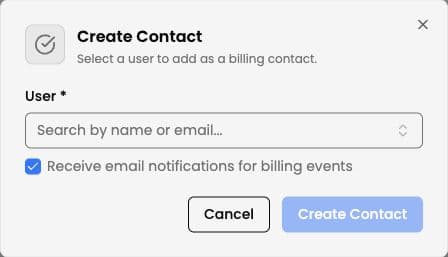
Illustrative example: search for an existing organization user and choose whether they receive billing emails.
Being a billing contact controls billing notifications; it does not by itself give that person permission to view or pay bills. If a finance colleague will handle payment, give them the necessary User access using Choose roles and access levels.
Review a bill and choose how to pay
- Open Billing → Bills and select a bill marked Unpaid or Overdue.
- Review its invoice number, line items, total, due date, and Amount Due. You can use Download PDF for your records. If a charge looks incorrect, contact your Industrix administrator before paying.
- Select Pay Now. Choose one of the payment methods shown for that bill, then select Continue. If a processing fee appears, review the total before continuing.
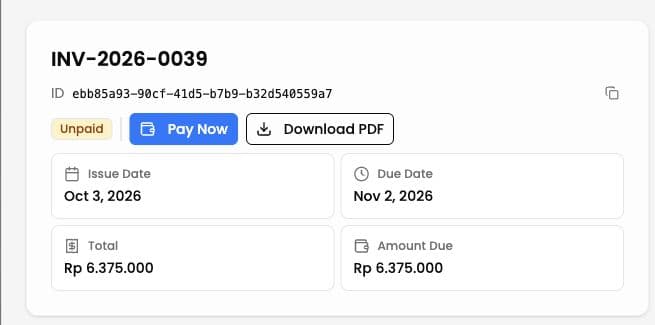
Illustrative example: check the amount due on your own bill before selecting Pay Now.
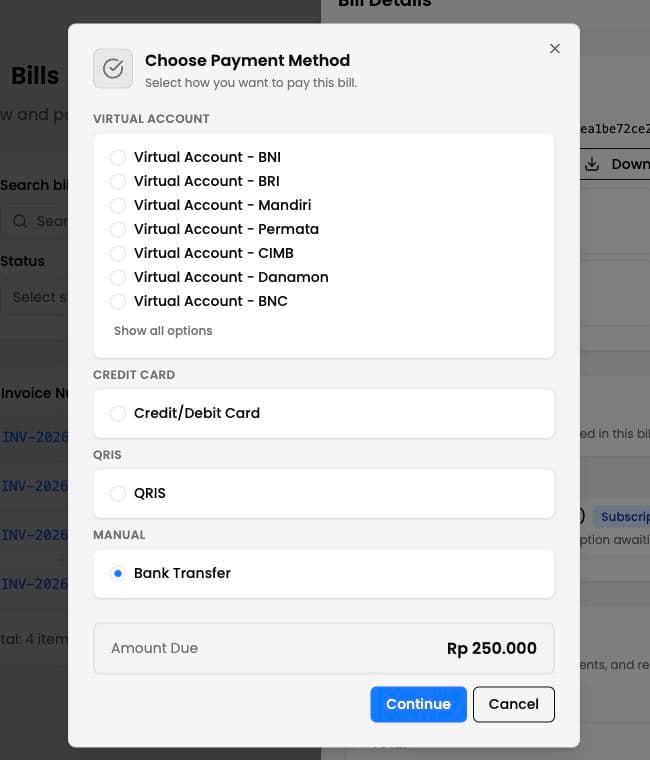
Illustrative example: available methods can differ for each bill.
For a virtual account, QRIS, payment code, or card, follow the instructions or checkout shown after you continue. Pay attention to the amount and any expiry time. A pending payment is not yet a paid bill; return to Bills to check its status.
If you choose bank transfer
- Choose Bank Transfer, select one of the recipient bank accounts shown in My Platform, and select Confirm.
- Transfer the amount to the account displayed for your bill. Selecting the account only prepares the transfer; it does not send money.
- Open the bill again and select Upload Proof Now.
- Upload your transfer receipt as a JPG, PNG, or PDF of up to 10 MB. Check Amount transferred; it starts with the bill's amount due. Add Notes if the amount you transferred differs from the amount due.
- Select Submit Proof. Your proof is submitted for review; the bill is not paid until the transfer is verified.
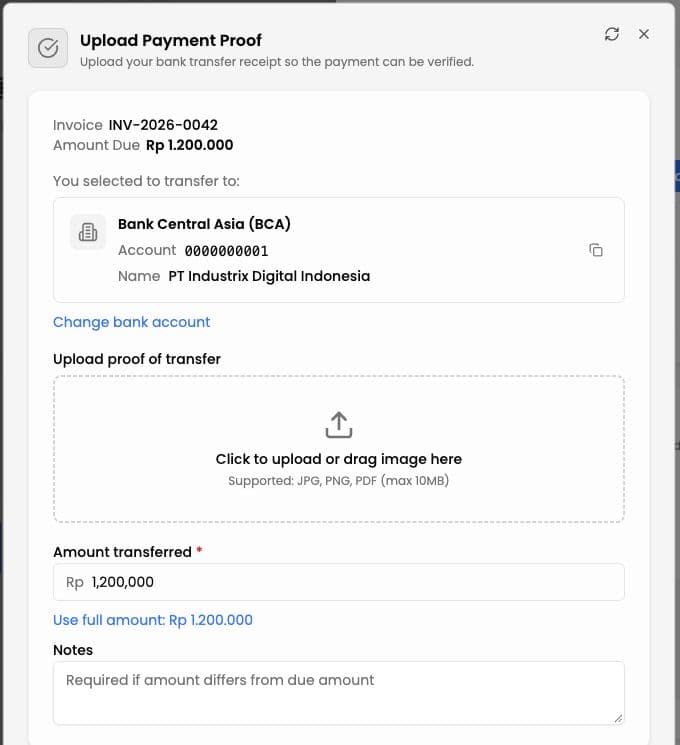
Illustrative example: use the bank account displayed for your own bill.
Confirm the final status
Return to Billing → Bills and open the bill. A completed payment shows Paid and Amount Due of zero. For an approved bank transfer, the bill also shows Proof Approved and a record in Payment Proof History.
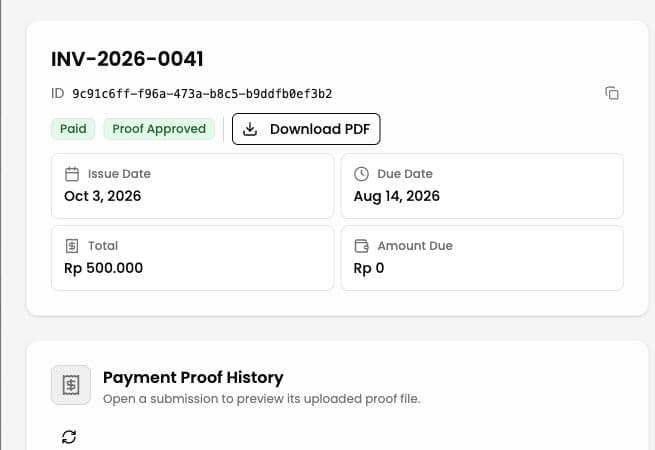
Illustrative example: a reviewed bank-transfer proof has been approved and the bill is paid.
If payment or proof review is still pending, check the bill again later. If the proof is rejected or the payment fails or expires, open the bill for the available next action, or ask your Industrix administrator for help. Do not assume a payment succeeded from a submitted receipt alone.