Organize site navigation
Add links to the site's public header and footer.
Creating a page does not automatically put it in a menu. Use Header for the main navigation across the top of the site and Footer for links near the bottom, such as useful pages and legal information. The links and layout available can depend on your site's template.
Add a header link
- Select the site and open CMS → Content → Header.
- Select Edit. Under Navigation links, select Add link.
- Enter the Link label and use Link destination to choose a page or URL. For a page on this site, choose its published page. Place links in the order visitors should see them using the move controls.
- Review the preview, then select Save. The header template may limit the number of links.
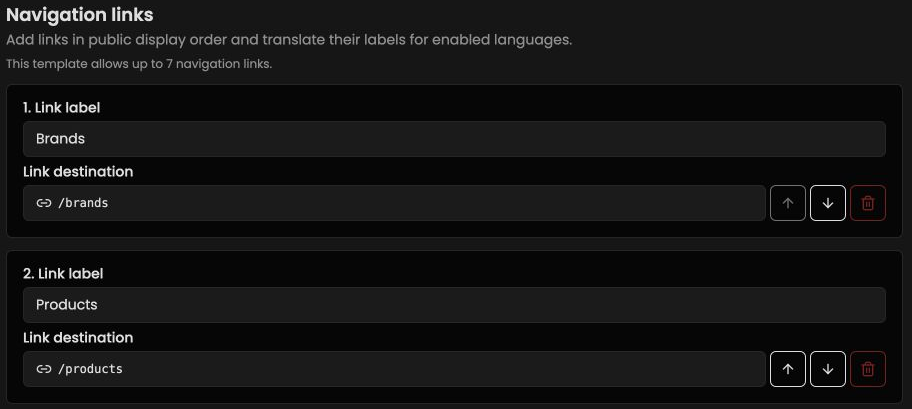
Illustrative header navigation controls. The label and destination are configured separately.
Add footer links
- Open CMS → Content → Footer and select Edit.
- In Footer content, use Link Groups to add a group and links. Use Legal Links for legal destinations. Enter a group label, link label, and destination; move groups or links to set their display order.
- Review the preview and select Save.
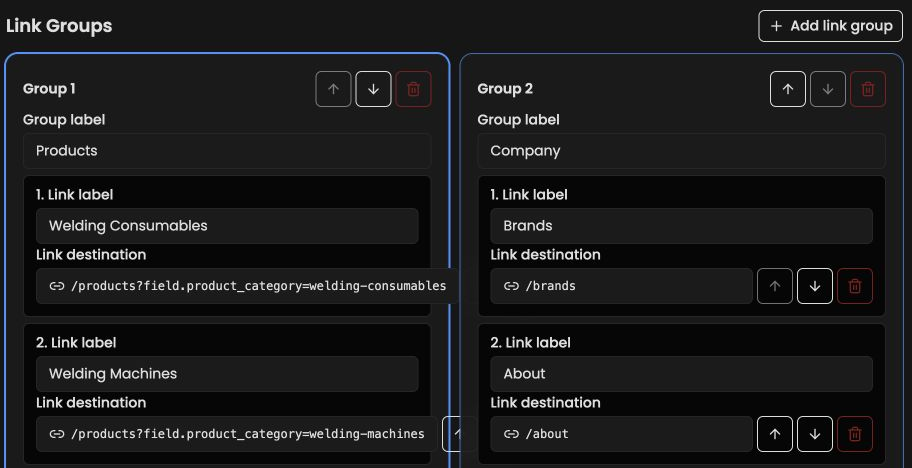
Illustrative footer link groups. Each group has its own label and links.
If your site has multiple languages, use the content-language selector to provide labels in each one. A link's destination and its label are separate choices: check both in the public site after saving. Preview and publish a page before adding it to navigation so the destination is available to visitors.