Preview and publish a page
Check a saved draft and make it visible on the public site.
Save draft keeps your changes in CMS. Publish latest draft makes a saved version available on the public site. Preview the page before publishing, especially after changing sections, media, path, or language-specific text.
Check the draft
- Select the intended site, open CMS → Content → Pages, and open the page.
- Save any content edits on the Content tab. Review the readiness messages and resolve fields marked as required.
- Open Preview to inspect the latest draft at different viewport sizes. On a wide screen, the preview may appear beside the Content editor instead of in a separate tab.
- Check each enabled content language. If the page has an SEO tab, review its title, description, and sharing details too. A saved draft is required before you can create a public preview link.
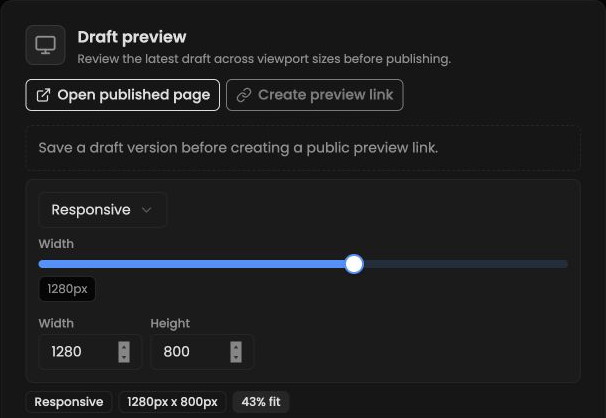
Illustrative draft preview controls. Adjust the viewport to check different screen sizes. Creating a public preview link requires a saved draft.
Publish and verify
- Open Publish & Rollback and review the draft and live-version information.
- Select Publish latest draft when it is available. If publishing is unavailable, follow the readiness or access message shown in the page workspace.
- Open the published page from the page workspace or your site's address. Check the visible content, links, media, and each enabled language as a visitor would see them.
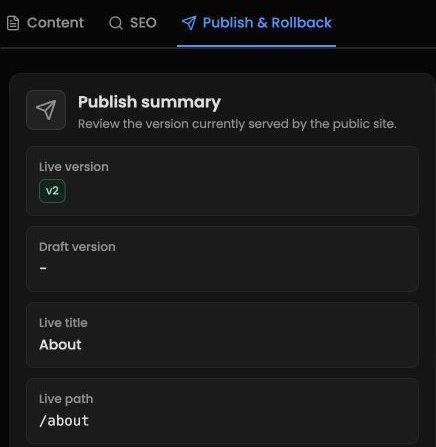
Illustrative publish summary for an already-published page. A dash under Draft version means there is no saved draft to publish yet.
Publishing does not automatically add the page to the header or footer. If visitors should find it from a menu, add a navigation link after confirming the page is live. The Publish & Rollback tab also retains version history so authorized users can review earlier published versions.