Configure site branding
Set a site's name, logos, and visual theme, then preview and publish the changes.
Brand settings control the selected site's identity and visual defaults. The brand name and description are localized; logos and theme colors are shared site settings.
Edit the brand identity
-
Select the site in App and open CMS → Site Settings → Brand.
-
On the Brand settings tab, choose the content language you want to edit. Select Edit in Brand identity.
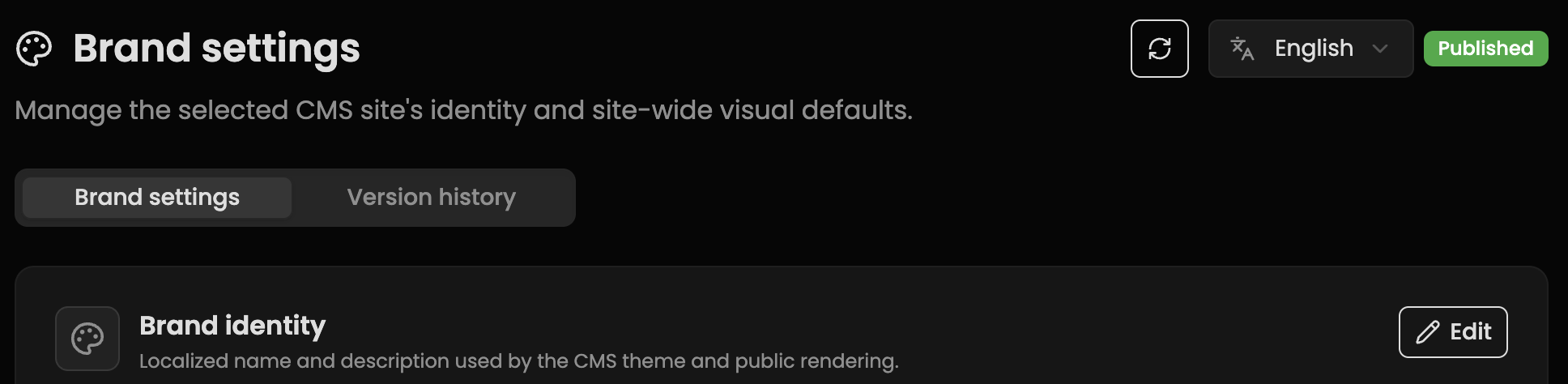
Illustrative view of the language selector and Brand identity Edit button.
-
Enter the Brand name and Brand description for that language. The default language requires both fields.
-
To add a logo, use Choose media in Horizontal logo or Square logo, and select an asset from this site's media library. Add Logo alt text for each language you use.
-
Review the Theme tokens for colors and typography. The available controls depend on the site's theme configuration.
-
Select Save to keep the identity and theme changes as a draft. Use the preview on this page to inspect the result, including the languages and visual modes you support. When the draft is ready, select Publish and confirm.
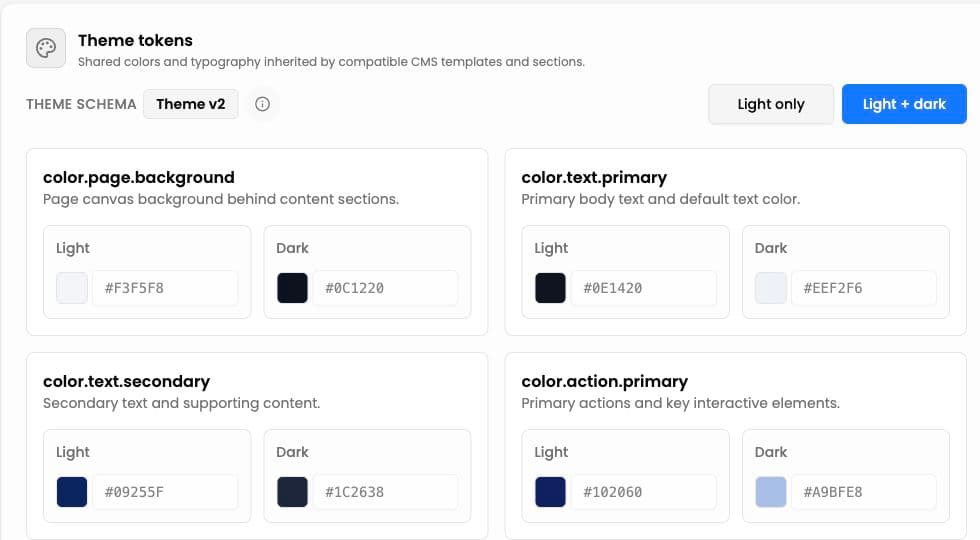
Illustrative view of shared theme controls. Your site's colors can differ.
Saving a draft does not publish it. If the preview or public page still shows the previous branding, check whether the latest draft has been published. The Version history tab lets authorized users inspect retained versions and restore a previous one when needed.
Where each logo appears
- Horizontal logo: the wide brand mark used by the site's header and by footer layouts that display the brand logo.
- Square logo: the icon used in the browser tab (the favicon).
The exact placement depends on your custom site template. A header or footer configured to show a text logo may display the brand name instead of an image. Preview your site's layout after publishing a logo change. Link previews can also use the horizontal logo, with the square logo as a fallback, when the page has no dedicated sharing image.
If a logo has not been selected, the site keeps a text-logo fallback. The logos must already be in this site's media library; set up the site's languages before filling localized identity text.