Manage site access and roles
Give organization members the CMS permissions they need for a selected site.
Use Access & Roles to decide who can work on a particular CMS site. These assignments are separate for every site. A member with the User system role also needs CMS: Access in their organization access levels in My; a site assignment cannot replace it. Read Understand CMS access before assigning levels.
Organization access levels are the per-member levels configured in My → Users → Edit → Access Levels. Here, CMS: Access allows a User to use CMS, while CMS: No access blocks CMS for that User throughout the organization. Site access levels are the separate CMS Content, CMS Site Settings, and CMS Inbox levels configured for each site below.
Who can access the site?
| Organization member | Site access |
|---|---|
| Owner or Admin | Inherits CMS access to all active CMS sites in the organization. They appear under System role access and do not need an individual site assignment. |
| User with CMS: Access in their organization access levels in My and at least one site level other than No access | Can open that specific site. Their CMS Content, CMS Site Settings, and CMS Inbox levels determine which parts they can use and what actions they can perform. |
| User with CMS: Access in My but no grant for this site | Cannot open this site. |
| User with a site grant but CMS: No access in their organization access levels in My | Cannot use any CMS site in this organization until their CMS selection in My is changed to Access. A site assignment cannot override this setting. |
The organization's active subscription must also make CMS available. For a User, CMS Site Settings: Manager grants access to this site's Access & Roles controls. CMS Content: Manager or CMS Inbox: Manager alone does not grant those controls. Give most teammates only the categories and sites their work requires.
Add an organization member to a site
- Select the site you want to manage in App.
- Open CMS → Site Settings → Access & Roles. Check the selected site name before continuing.
- In CMS site access, select Invite user to CMS site.
- Search for and select an existing organization member. If the person is not listed because they have not joined the organization, invite them to the organization first.
- Choose a level for CMS Content, CMS Site Settings, and CMS Inbox. Give at least one category a level other than No access; leave unrelated categories at No access.
- Select Add member, then confirm the person appears in the selected site's access list with the intended levels.
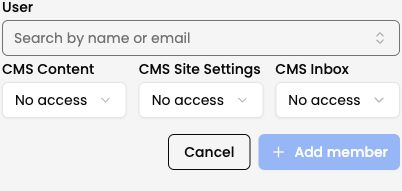
Illustrative view of the three independent site access categories.
For example, a writer may need CMS Content: Editor and No access to Site Settings and Inbox. Someone who handles submissions may need CMS Inbox: Agent. A person who manages the site's configuration needs CMS Site Settings: Manager. These categories are independent; Content Manager does not automatically grant Site Settings Manager.
Change or remove site access
In CMS site access, select Edit, adjust the member's levels, and select Save. To remove a member's site assignment, use the row's removal action and confirm it. Removing site access does not remove the person from the organization.
Owners and Admins appear under System role access because their CMS access is inherited. Do not create a separate site assignment for them. Reserve the Admin system role for someone the Owner deeply trusts with broad organization control; assign site-specific levels to Users for ordinary CMS work.